
How to claim your host payout on luckladder
This guide covers getting paid after your competition closes — from the draw through prize handover to money in your bank. Same Toyota MR2 Turbo example as how to claim your prize on luckladder.
Contents
Summary
- Set up a verified payout account before the draw.
- Contact the winner and arrange handover from your host email.
- Claim your payout after they confirm receipt, your own code arrives by email.
- Track status in My Competitions and the host dashboard.
Before you start
- Set up your payout account early. Add your bank details and complete any identity verification on your payout account before the draw date. You can do this when luckladder prompts you, or while the competition is still live. A missing or unverified payout account delays your money.
- Understand your reserve. If you set one, enough tickets must sell for the physical prize to be awarded and for your full payout path to open. If the reserve is not met, the draw still runs but the winner gets a cash alternative instead, and you receive no host payout.
- You do not need to watch the draw live. When the countdown ends or the last ticket sells, luckladder runs the draw automatically. You will get an email with the result.
- Make sure you have access to the email address you used to register your luckladder account. You will get an email when the draw finishes, another when it is time to claim your payout, and more as your money moves through processing.
- Never share your verification code. You and the winner each receive your own code. Do not exchange codes with each other.
1. The draw runs automatically
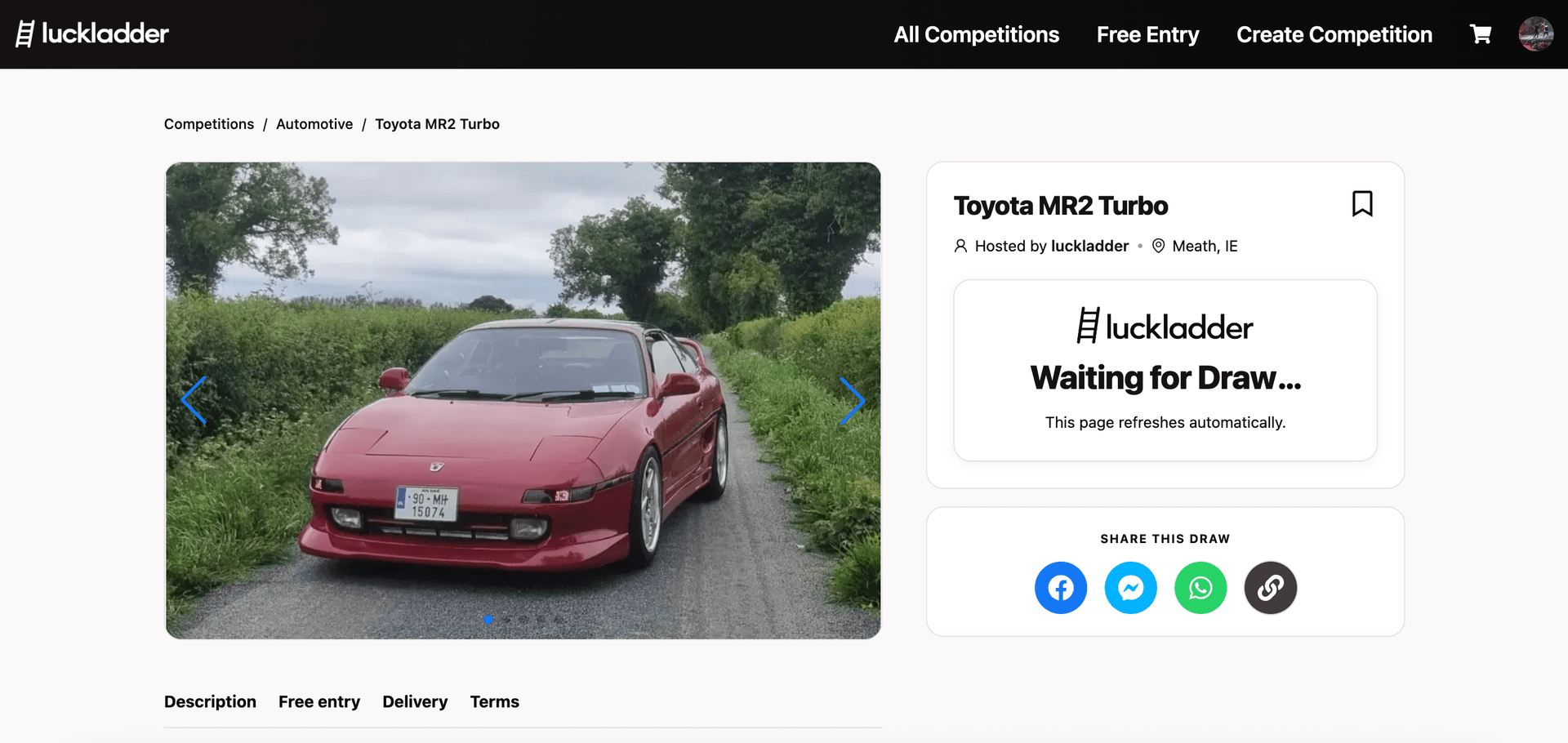
When the countdown on your competition page ends, or every ticket sells, luckladder queues the draw. You do not need to be on the page. You will get an email when the draw is done. The draw usually finishes within a few seconds, but it can take a couple of minutes during busy periods.
2. Winner selected
As soon as the draw completes, you will get an email with the result and your next steps. Open it and follow the instructions inside.
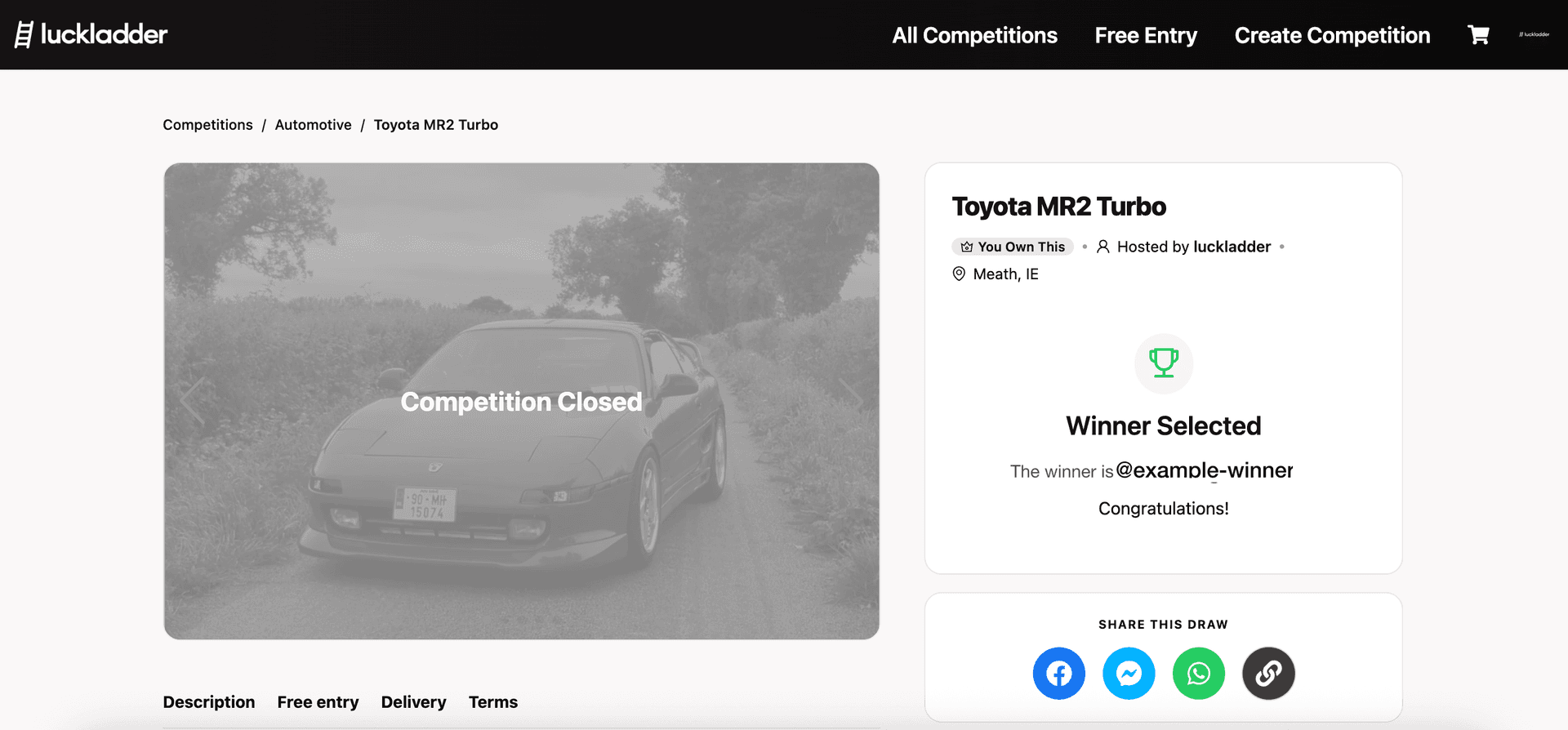
Your competition page will also update to show Winner Selected with the winner's username. You do not need to check the page. You can reach it from the link in your email, or via My Competitions in your account menu.
3. Read your host email
Follow your draw-result email step by step. luckladder sends you a new email at each stage so you know what to do next.
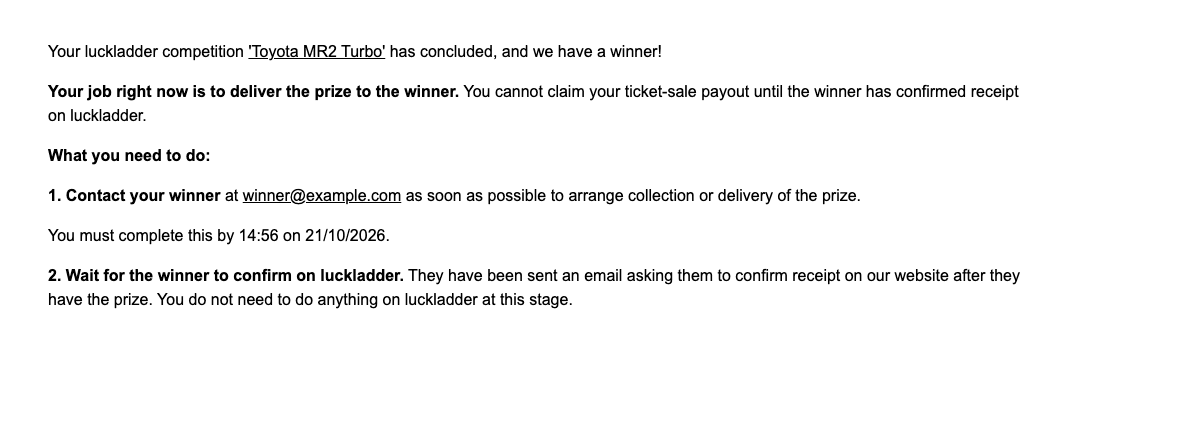
Contact the winner using the email address in the notification. Arrange prize handover between the two of you before the deadline shown in the email. After prize handover, the winner will confirm receipt on luckladder.
While you wait, keep your payout account set up and verified so there is no delay when it is time to claim.
The winner receives a separate email with their instructions and their own code. Prize handover happens between you and the winner directly.
4. Arrange prize handover
Reply to the winner and agree how the prize will change hands: collection, delivery, shipping, or whatever you listed on the competition page. Kep the communication between you and the winner prompt as the claim deadline is already running.
Do not ask the winner for their verification code. They enter it themselves after they have the prize. You will get your own code in a later email once they confirm. There is no way for you to release your payout with the winner's code.
If someone contacts you claiming to be the winner from an address that does not match the email in your luckladder notification email, ignore them and report it to info@luckladder.com.
5. Wait for the winner to confirm
After the winner has the prize, they sign in to luckladder and submit their claim with their personal verification code. You do not need to take any action on the site during this step. We will email you when they confirm.
You can check progress on your competition page or in the host dashboard. The status moves forward once the winner confirms.
6. Your payout-ready email
When the winner confirms receipt, you will get a new email telling you it is time to get paid. It shows the payout amount due and includes your personal verification code.
Follow the link in the email or open your competition page. Both routes lead to the same claim flow. Claim before the deadline in the email.
Keep this code private. Sharing it may result in forfeiture of your payout.
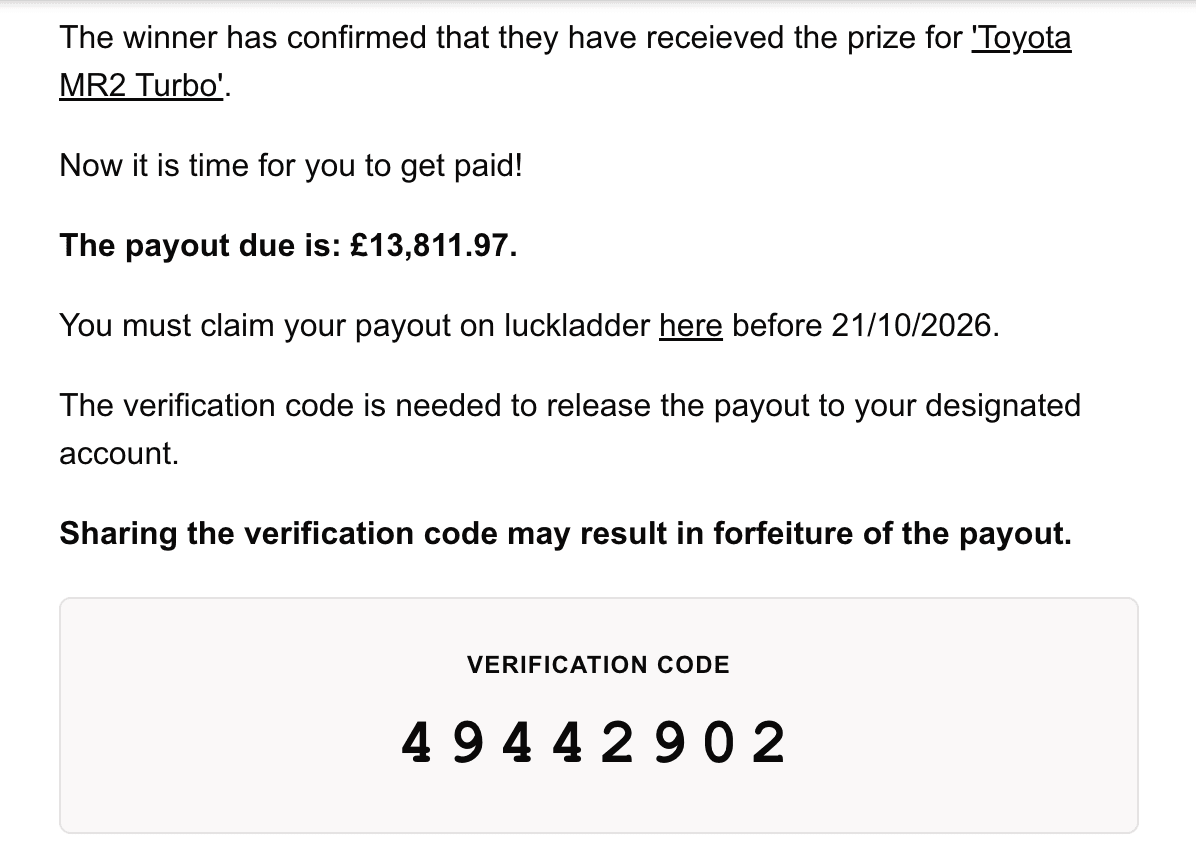
7. Claim your payout
Your payout-ready email includes a link to the claim page. You can also open the competition page and click Claim your payout if you prefer.
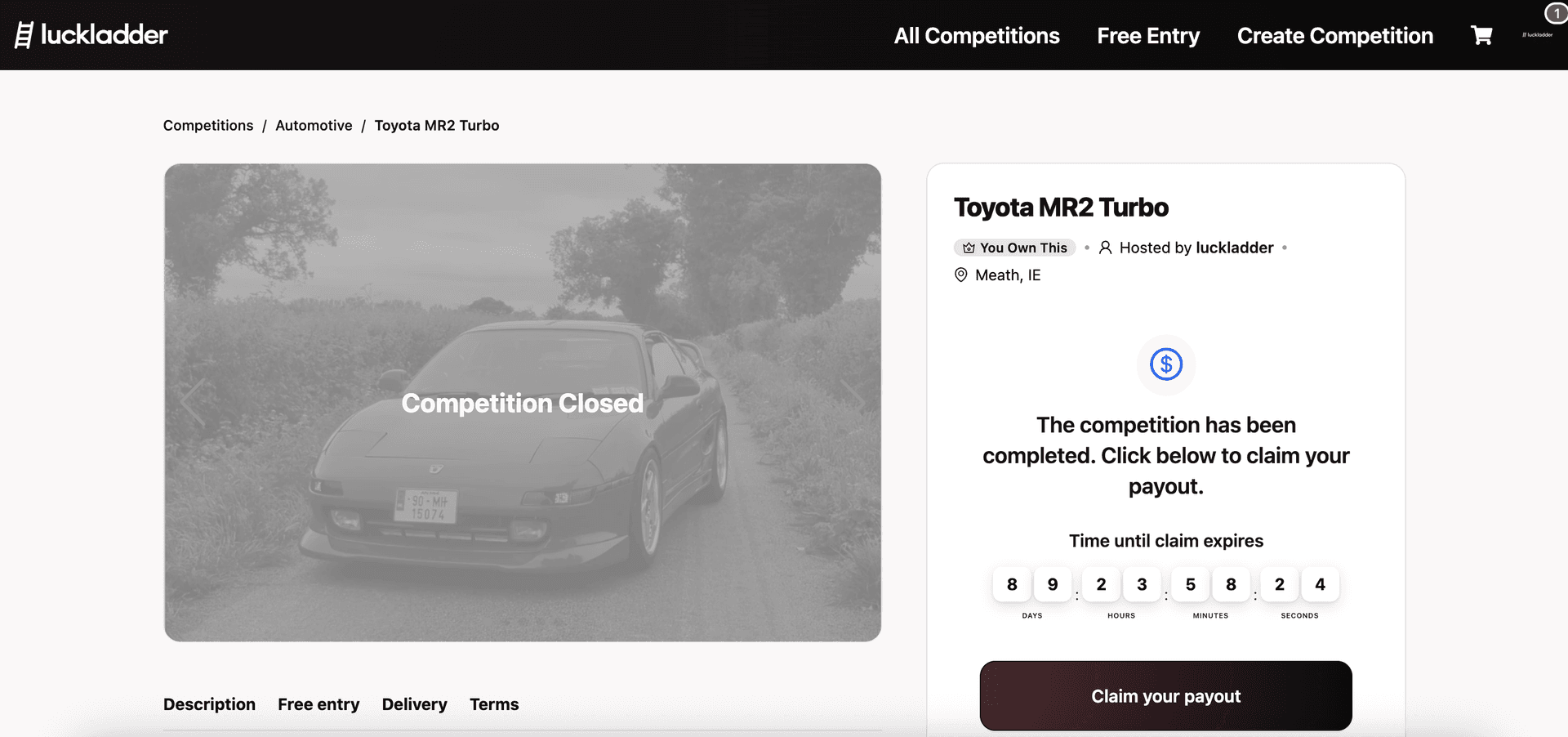
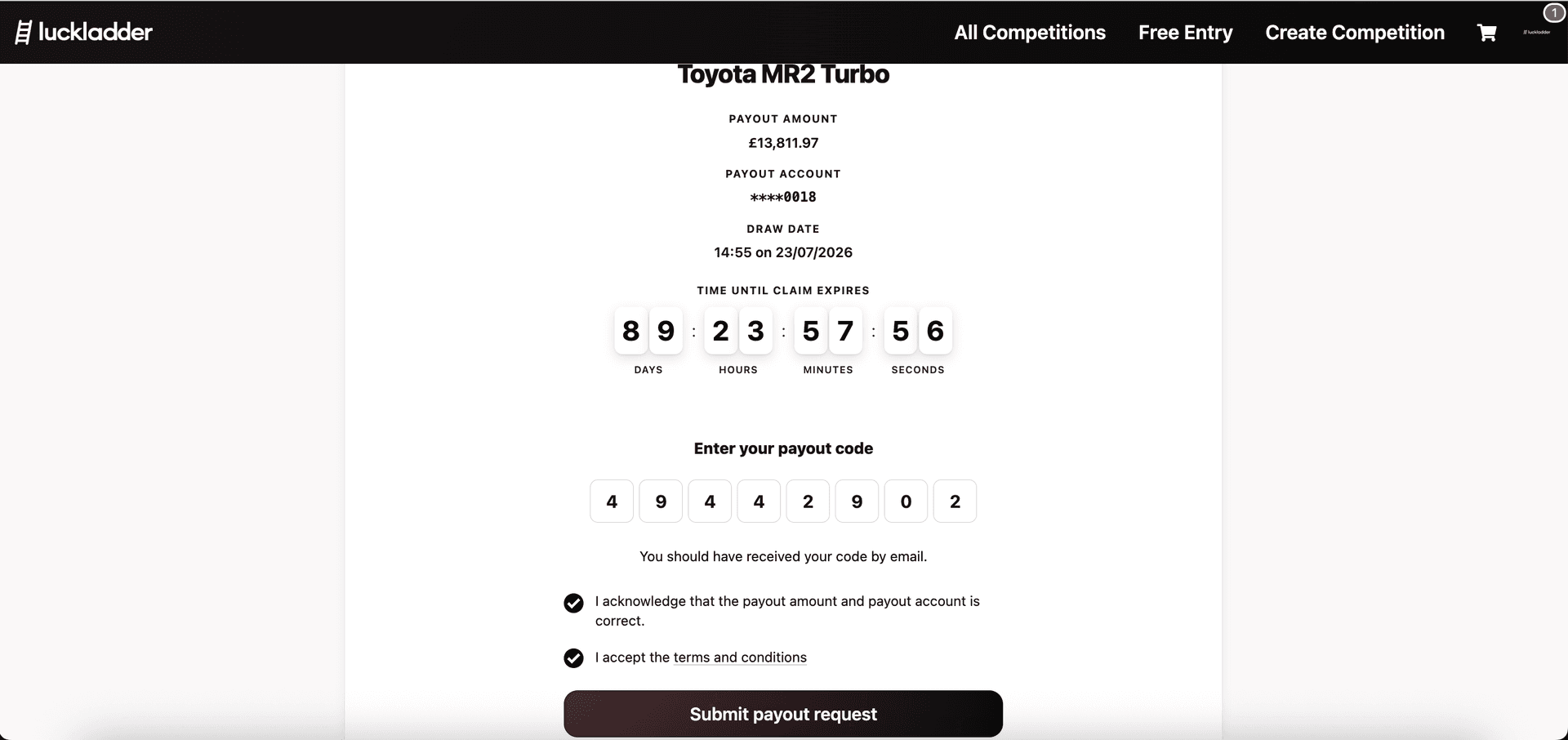
8. Enter your payout code
Check the payout amount and the bank account ending shown on screen match what you expect. Enter the eight-digit verification code from your email, confirm the details, accept the terms, and hit Submit payout request.
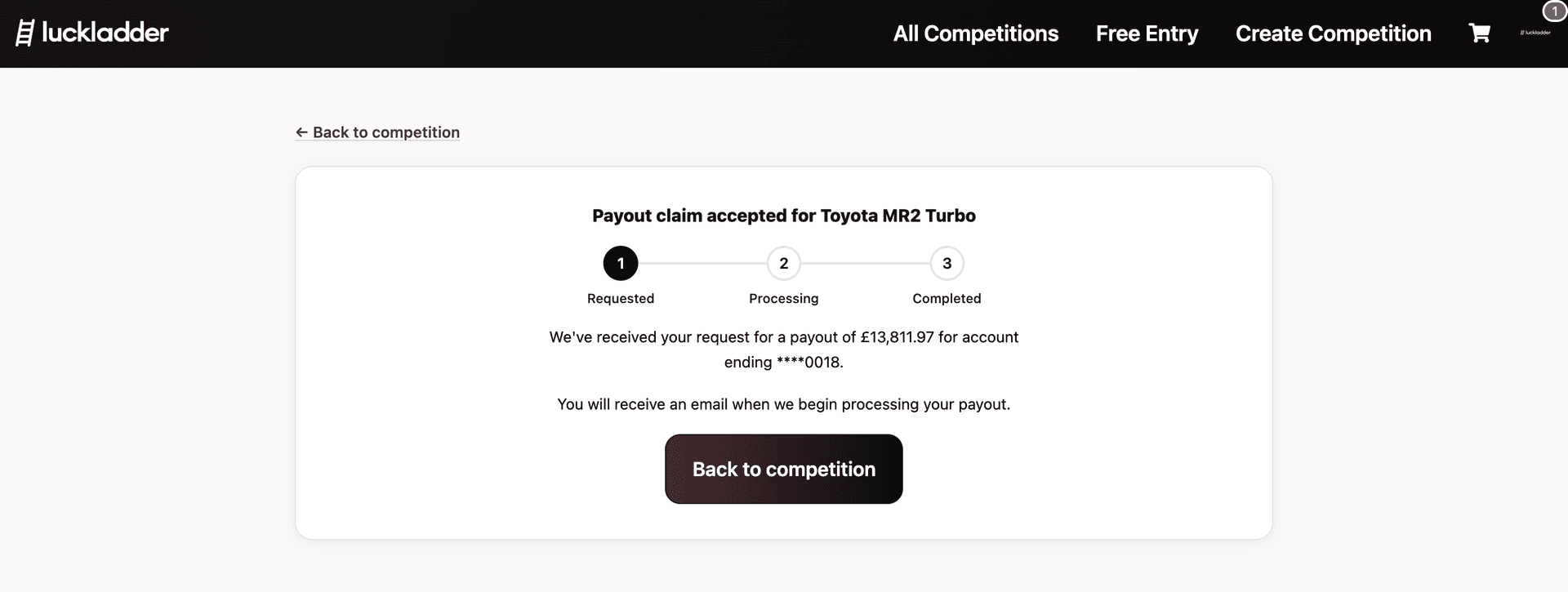
9. Payout requested
luckladder accepts your request and shows a progress tracker: Requested, then Processing, then Completed. You will get an email when processing begins and another when the money is on its way.
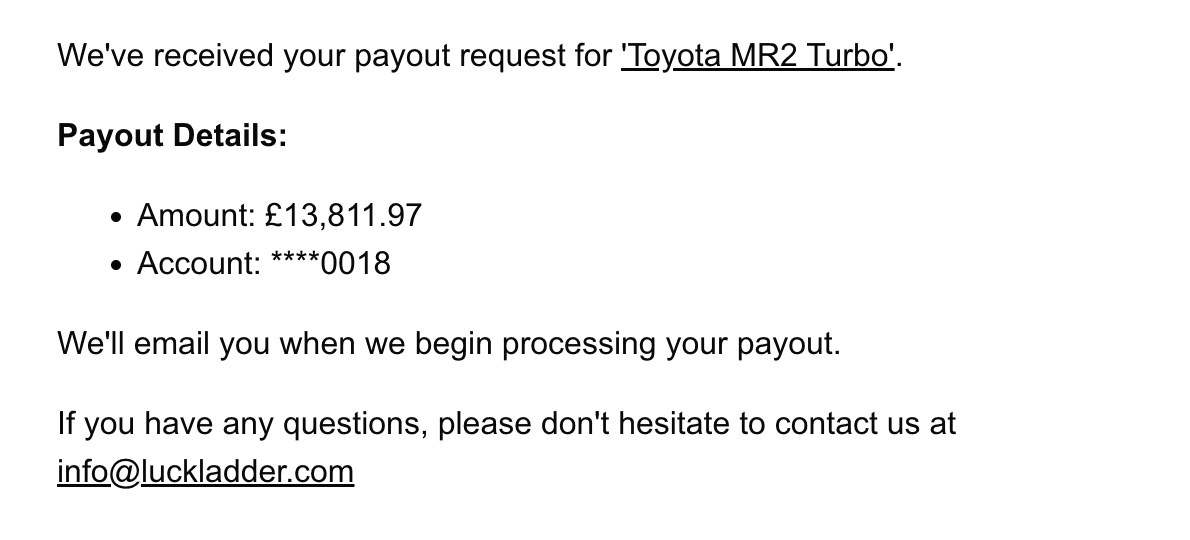
10. Confirmation email
You will also receive an email summarising the payout amount and the account it is headed to. Keep it for your records.
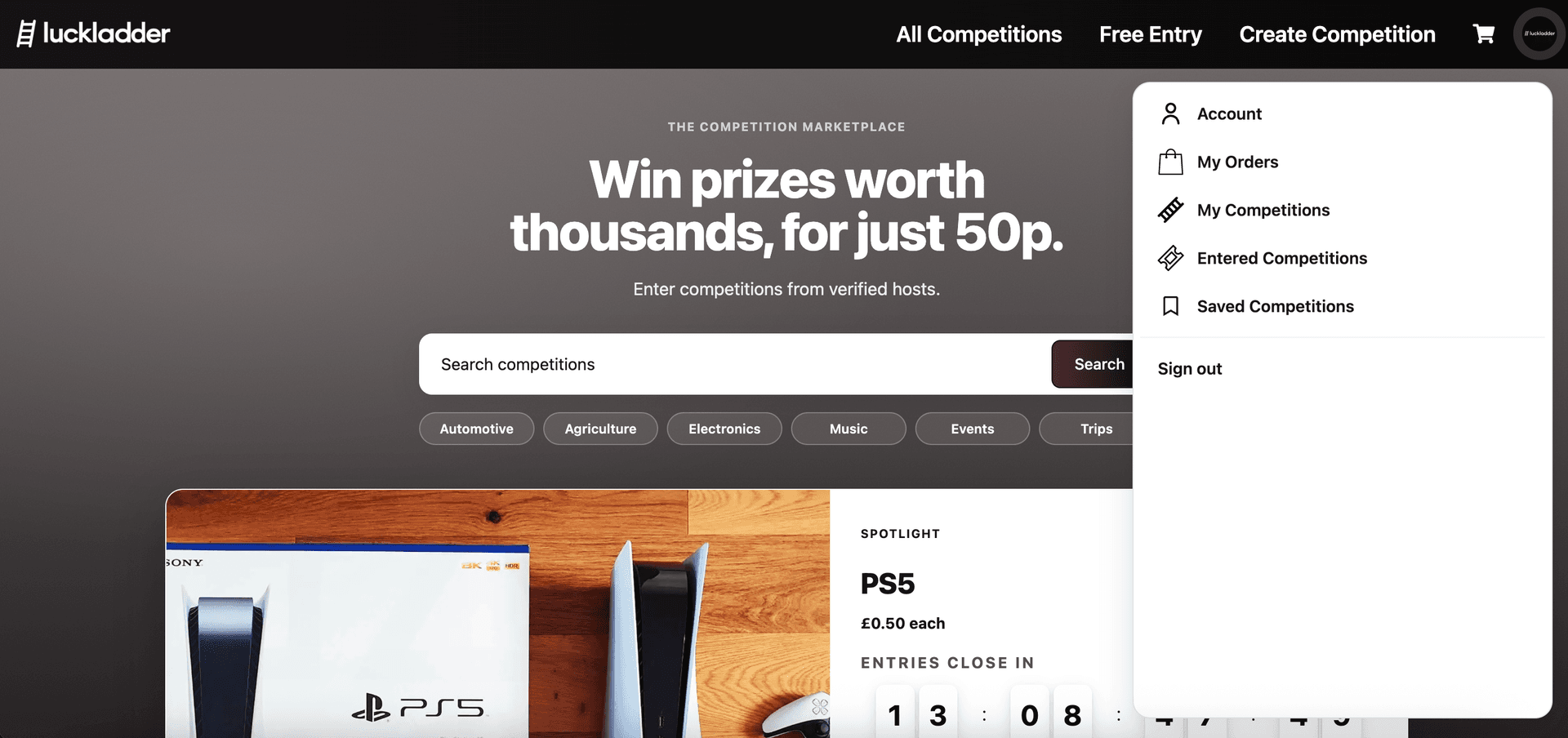
11. Open the host dashboard
You can track everything from the host dashboard as well as the competition page. Click your profile icon in the top nav and choose My Competitions to open it.
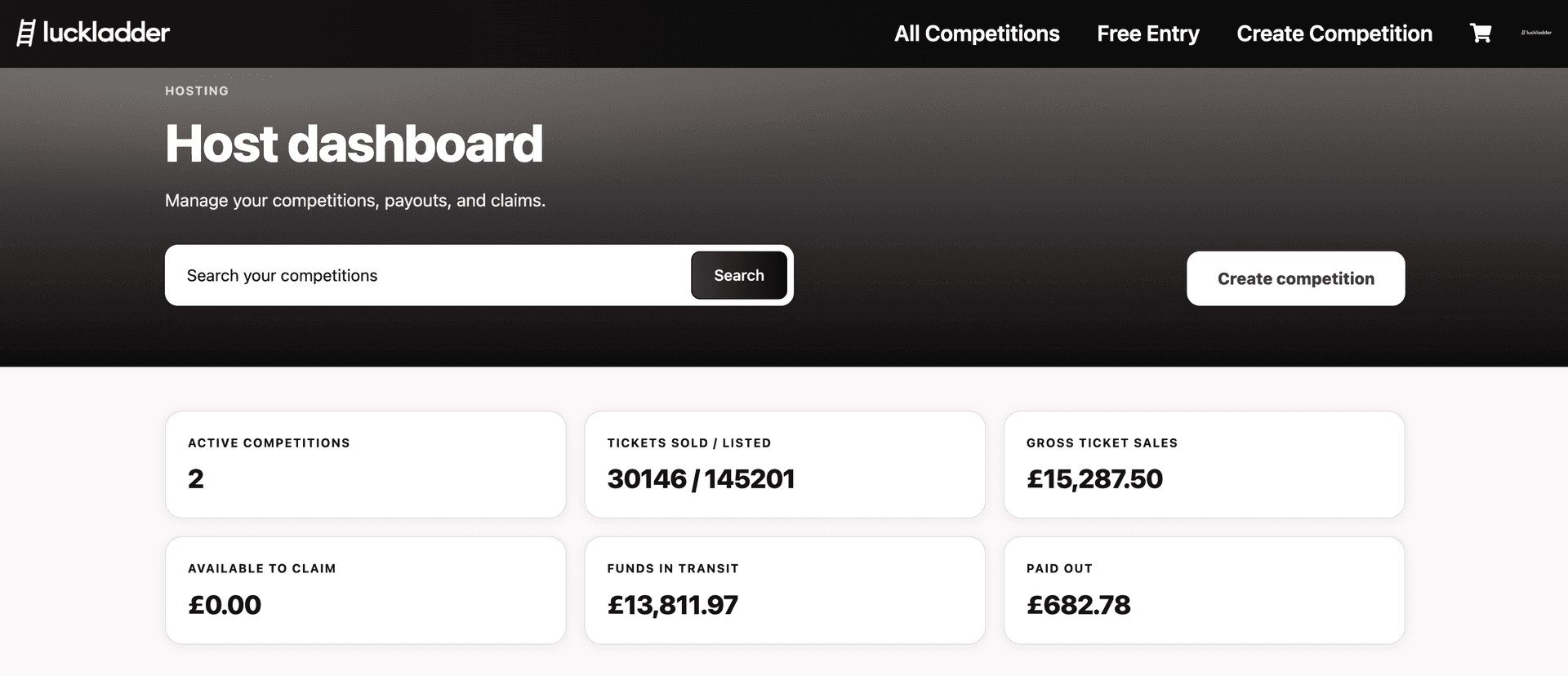
12. Dashboard overview
The host dashboard shows your live competitions, sales totals, and payout buckets at a glance:
- Available to claim: cleared funds you can request to withdraw the funds from luckladder now into your payout account.
- Funds in transit: payouts you have requested but are not yet completed. This means the money is moving through our internal system and will be deposited into your payout account soon.
- Paid out: money already left luckladder and sent to your payout account. It may take 5-7 working days for the money to appear in your account, but from our side it is sent.
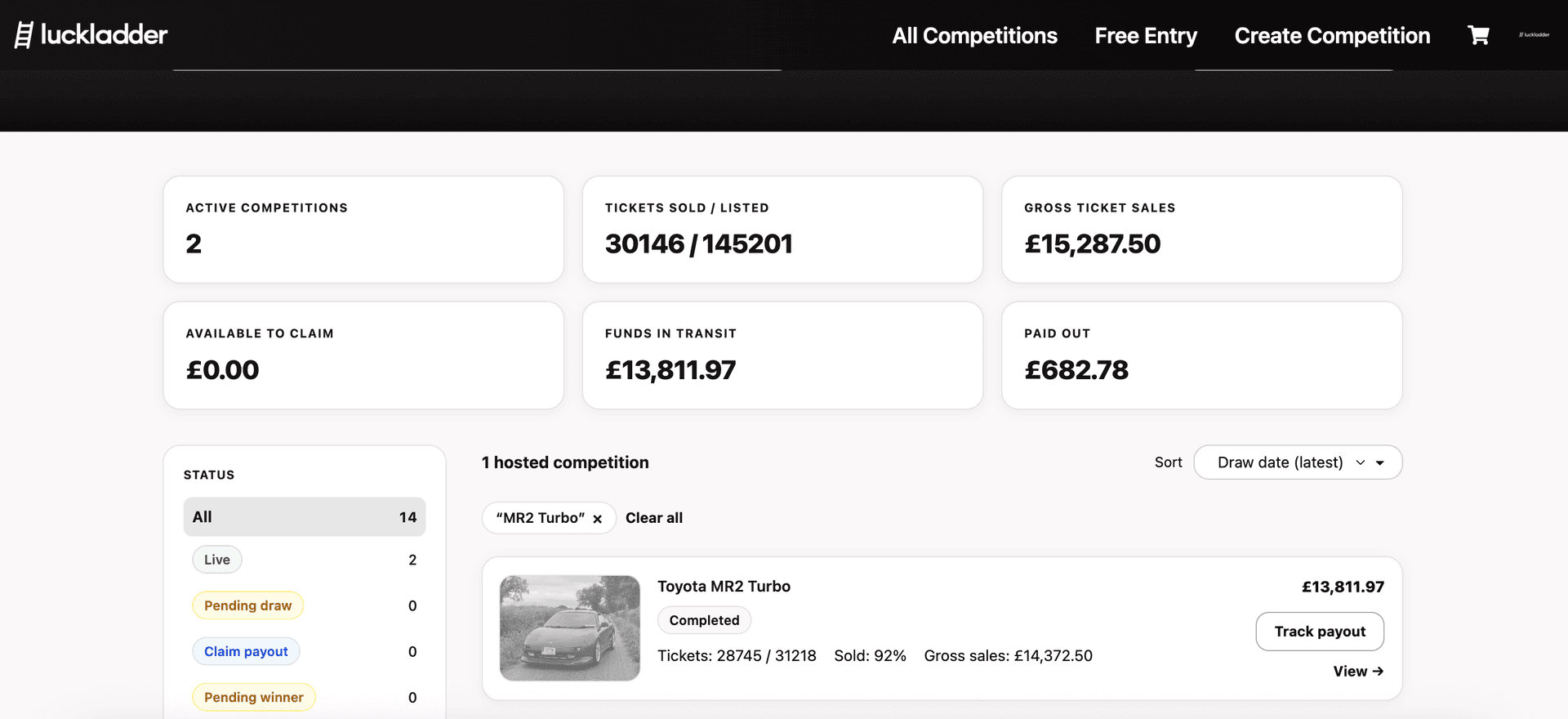
13. Track a completed competition
Filter your competitions by status to find completed draws. Each card shows ticket sales, gross revenue, and a Track payout button while money is still moving.
14. Payout sent
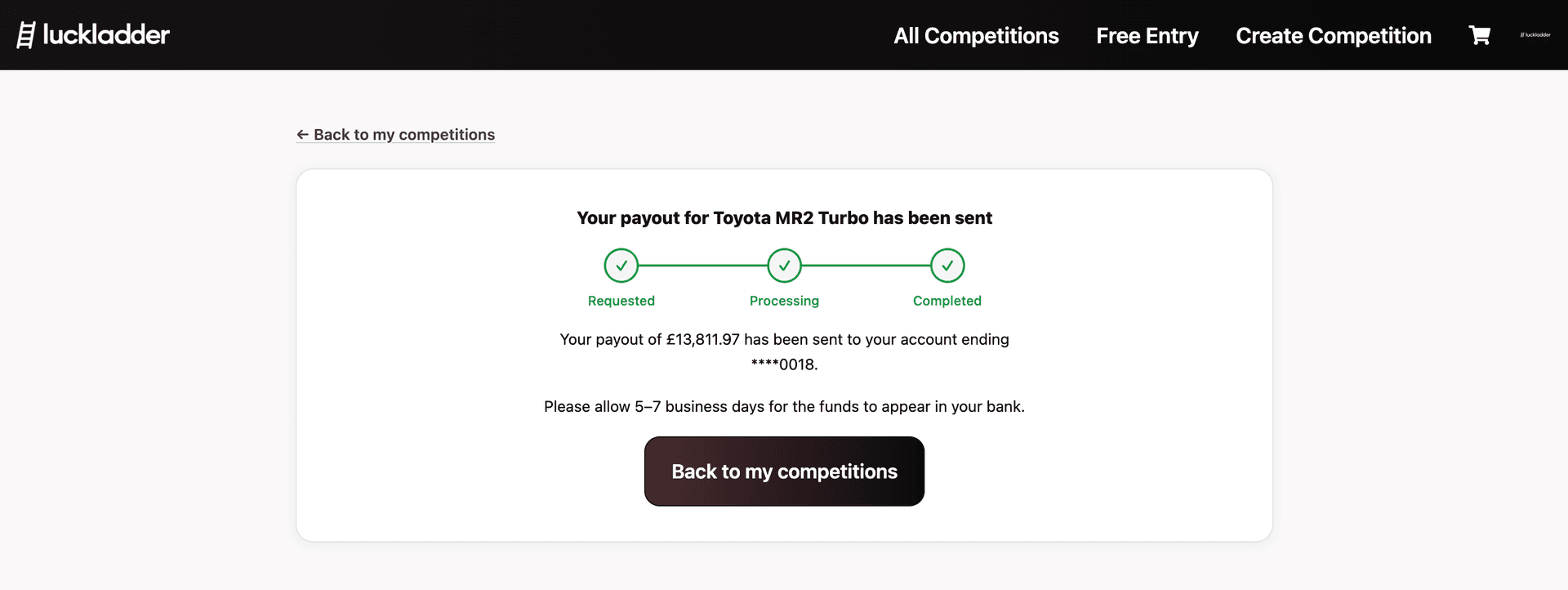
After processing finishes, you will get an email confirming the payout has been sent from our side. The competition page updates to show Completed on the progress tracker.
You can also open this from My Competitions or the link in your email.
And you're done! The money has left luckladder. It may take 5-7 business days to appear in your bank account.
What if the reserve wasn't met?
If you set a reserve and not enough tickets sold before the draw, the reserve is not met. The draw still runs, but the winner receives a cash alternative instead of the physical prize.
In that case there is no host payout. You will get an email explaining that the reserve was not met and that no action is needed from you. The winner's cash entitlement comes from ticket sales, not from you personally.
Plan your reserve carefully when you create a competition. See how to host a competition on luckladder for how reserve affects your minimum and maximum payout figures.
Other payout edge cases
- Below minimum payout. If your ticket-sale entitlement is below our minimum transferable amount of £10.00, no bank payout is sent even when the winner confirms. You will receive an email saying the competition is complete and no further action is required.
- Claim expiry. Each stage has its own deadline, shown in your email and on the competition page. The winner has 90 days from the draw to confirm receipt. Once they do, you have 90 days to claim your payout. Miss either deadline and the claim can expire. Contact support if you think that happened in error.
- Bank processing time. After your payout is marked completed, your bank may take a few working days to show the deposit.
Ready to host again?
Open Create Competition to list your next prize, or read how to host a competition on luckladder if you have not run a draw yet. Wondering what the winner sees? Read how to claim your prize on luckladder.
Join the waitlist
luckladder is not live yet. Join the waitlist and we will let you know when you can start hosting and entering competitions.